
Flanger
Администратор
-
Зарегистрирован
Весь контент Flanger
-
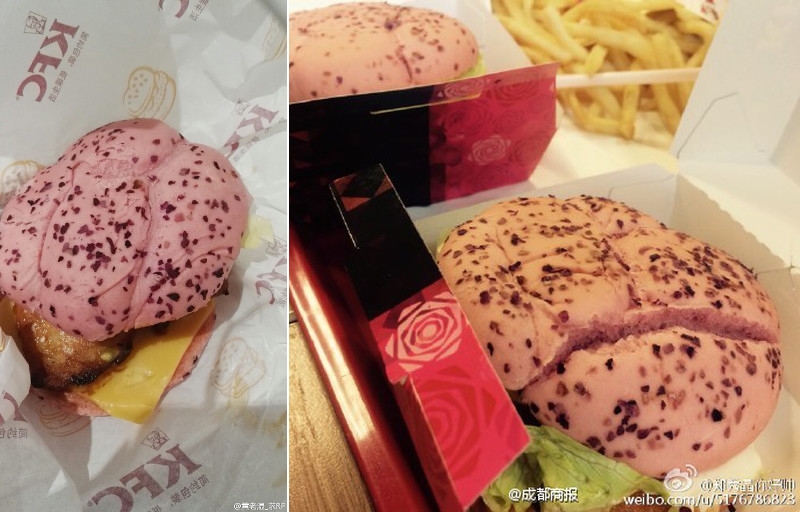
Китайский KFC запустил в продажу розовый (розовый сыр) и черный бургеры (черный алмаз) по цене 2.80$




 Если вы хотите, чтобы рис получился белоснежным, при варке добавьте немного уксуса. Чтобы придать пикантную чесночную нотку всему блюду, натрите зубчиком чеснока тарелку, а потом выкладывайте на нее салат или гарнир. Новый вкус маринаду для мяса даст темное пиво или смесь светлого пива с соевым соусом, солью и перцем по вкусу. Пиво можно добавлять также в тушеные овощи, в том числе оно придаст особый вкус и запах вареному картофелю. Печень нужно солить только в конце, иначе она станет жесткой. Чтобы верх пирога не пригорел, прикройте его смоченной бумагой. Если бросить в бульон кусочек льда и довести до кипения, бульон будет более прозрачным. Чтобы аккуратно нарезать яйцо, сваренное вкрутую, смочите лезвие ножа холодной водой: желток не будет крошиться. При варке фасоль не потемнеет, если варить ее не закрывая кастрюлю крышкой. Фарш будет ароматнее и вкуснее, если добавить в него часть сырого лука, часть поджаренного лука и мелко натертую сырую картошку. Используйте лимонный сок в блюдах, чтобы частично заменить соль. Это полезно для регуляции давления. В итоге вы не пересаливаете блюдо, а цитрусовый привкус придает ему изысканный аромат. Баклажан не будет горчить, если перед приготовлением вы нарежете его на кусочки, посолите и дадите немного пустить сок. После этого промойте баклажаны в холодной воде. Миндаль легко очистится от кожицы, если сначала вы прокипятите его в течение 5 минут, а потом остудите в холодной воде. Сметана гораздо лучше взобьется в крем, если добавить в нее немного яичного белка. Если добавить в молотый кофе щепотку соли, то напиток будет во много раз вкуснее! Чтобы мясо, запеченное в духовке, приобрело румяную корочку, смажьте его сверху гранатовым соком и медом, разведенным сухим вином, коньяком или водой. Если вы слишком долго варили мясо, нарежьте его тонкими ломтиками, выложите на тарелку, посыпьте луком и помидорами и добавьте немного растительного масла, лимонного сока и уксуса. Вскоре мясо вновь станет сочным. Вместо панировочных сухарей используйте молотые орехи. Только что приготовленное мясо не спешите сразу подавать на стол. Пусть оно немного остынет и раскроет свой вкус. Винегрет будет вкуснее, если вы добавите в него столовую ложку молока и чайную ложку сахара. Яблоки в шарлотке не опустятся на дно формы, если обвалять их перед приготовлением в муке. Перед тем как снять суп с огня, добавьте в него немножко свежего сока капусты, моркови или помидоров. Это усилит вкус и обогатит ваше блюдо витаминами. Ваниль — превосходная специя для придания пикантной нотки овощным салатам. Есть много способов спасти пересоленный суп. В частности, можно окунуть в него марлю с небольшим количеством крупы и проварить: каша впитает в себя излишек соли.
Аккаунт
Навигация
Поиск
Configure browser push notifications
Chrome (Android)
- Tap the lock icon next to the address bar.
- Tap Permissions → Notifications.
- Adjust your preference.
Chrome (Desktop)
- Click the padlock icon in the address bar.
- Select Site settings.
- Find Notifications and adjust your preference.
Safari (iOS 16.4+)
- Ensure the site is installed via Add to Home Screen.
- Open Settings App → Notifications.
- Find your app name and adjust your preference.
Safari (macOS)
- Go to Safari → Preferences.
- Click the Websites tab.
- Select Notifications in the sidebar.
- Find this website and adjust your preference.
Edge (Android)
- Tap the lock icon next to the address bar.
- Tap Permissions.
- Find Notifications and adjust your preference.
Edge (Desktop)
- Click the padlock icon in the address bar.
- Click Permissions for this site.
- Find Notifications and adjust your preference.
Firefox (Android)
- Go to Settings → Site permissions.
- Tap Notifications.
- Find this site in the list and adjust your preference.
Firefox (Desktop)
- Open Firefox Settings.
- Search for Notifications.
- Find this site in the list and adjust your preference.