


Flanger
Администратор
-
Зарегистрирован
Весь контент Flanger
-
-
-
-
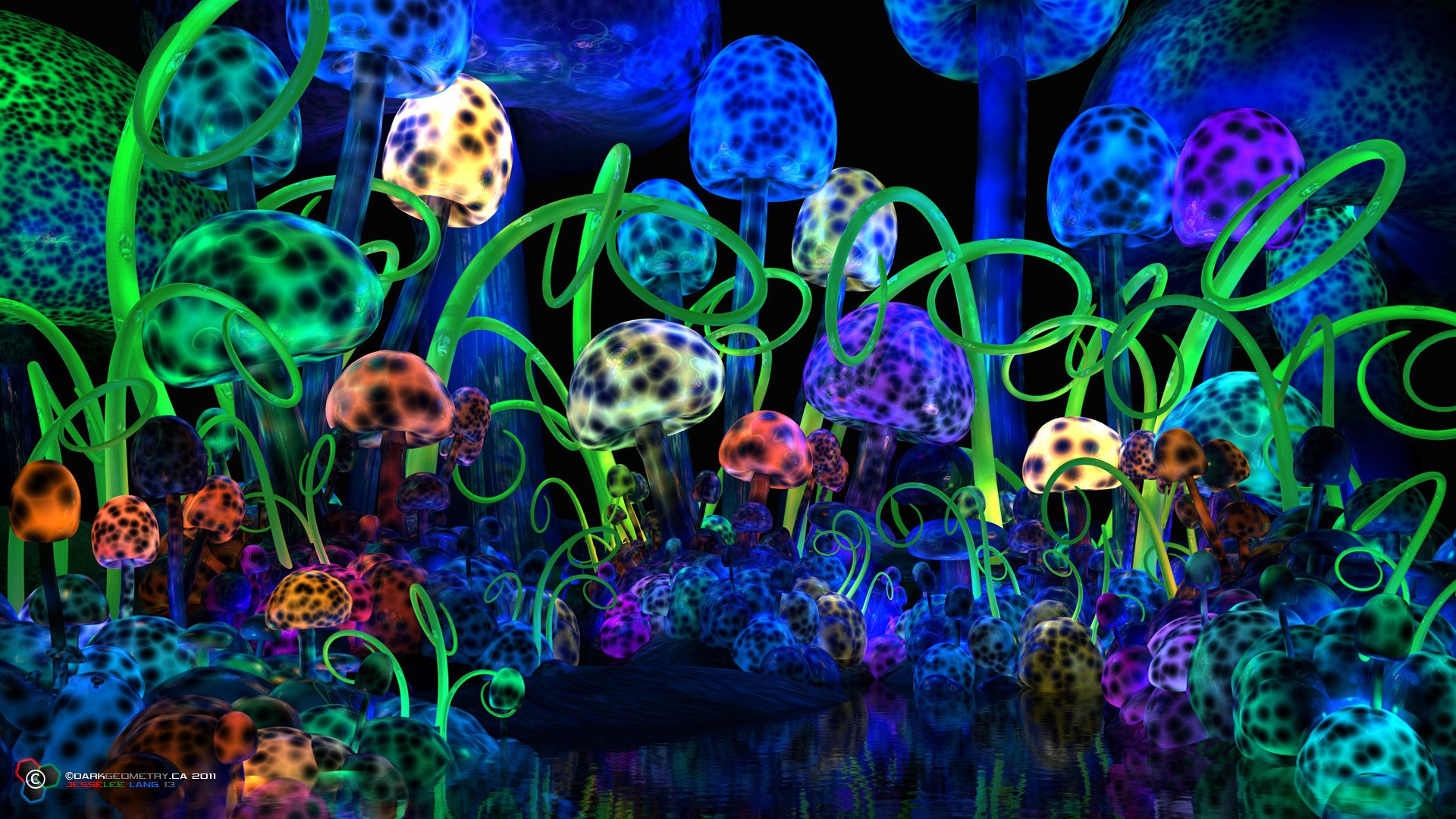
В Японии его знают как Каваратаке,- гриб растущий у реки, в Китае он известен как гриб «Юн-чжи»- туманный гриб, в Северной Америке известен под названием «Хвост индейки». Встречается в различных формах на высохшей широколиственной древесине. В Китайском трактате в изданном во времена правления династии Мин указано, что «Юн-чжи» (каваратаке) полезны для поддержания силы духа и жизненной энергии и укрепления сухожилий и костей, Если принимать «Юн-чжи» в течении длительного времени , он придаёт человеку энергию и увеличивает продолжительность его жизни». Из всех грибов, Каваратаке является одним из наиболее изученных современными исследователями и потому широко применяется как в традиционном траволечении, так в современной клинической практике. Каваратаке посвящено более 300 научных работ ,проведены десятки контролируемых клинических испытаний. Hydnellum pecki Гриб Кровоточащий зуб. Обитает он в хвойных лесах Северной Америки. Недавно его заметили в Корее и Иране. Впервые этот необычный гриб был представлен в 1812 году. Выглядит он довольно устрашающе - на белой и бархатистой поверхности молодых грибов выступают капли красной или ярко-розовой жидкости, похожей на кровь. Мякоть грибка твердая и напоминает пробку. Пробовать на вкус «кровавый» гриб не стоит, он может стать вашим последним ужином. Ученые-микологи выяснили, что вещество, выделяемое грибом, обладает уникальными антибактериальными свойствами. Оно содержит атроментин - пигмент - антикоагулянт, препятствующий быстрой свертываемости крови, что препятствует образованию тромбов. Свойства жидкости грибов Кровоточащие зубы схожи по своим свойствам также с Penicillium notatum, и медики надеются, что скоро возможно получат из нового источника новый вид антибиотиков. Geastrum triplex Земляная звездочка (Geastrum triplex). У нас называют "дождевики" или "дедушкин табак", за характерный "дымок" при раскрытии спелых грибов (выброс спор). Этот вид обычно встречается группами, часто сотнями экземпляров, и нередко можно одновременно наблюдать различные стадии развития. Молодое плодовое тело округлое, с острым носиком, грязно-коричневого цвета, до 5 см высотой и 3.5 см диаметром. Позже наружный слой (экзоперидий) разрывается на 4-7 толстых лопастей изабеллового, терракотового или бежевого оттенков. В развернутом виде диаметр плодового тела может достигать 12 см, а высота его варьирует от 3 до 8 см. Gyromitra esculenta Строчок обыкновенный, один из нескольких разновидностей грибов из рода Gyromitra. Он широко распространен по всей Европе и Северной Америке. Произрастает на песчаной почве под хвойными деревьями весной и в начале лета. Внешне гриб похож человеческий мозг, темно-коричневого цвета, высотой до 10 см и шириной до 15 см. Он стоит на крепкой белой ножке длиной до 6 см. Не смотря на то, что он считается ядовитым, его употребляют в качестве деликатеса в Скандинавии, Восточной Европе, и верхней части Великих озер Северной Америки. Также он распространен в некоторых районах восточных Пиренеев, но в Испании его запрещено продавать. Его можно продавать в Финляндии, но обязательно в сопровождении инструкции о правильном приготовлении блюда из этой разновидности грибов. В Финляндии существуют домашние рецепты различных блюд с использованием этого необычного гриба. Еще его добавляют в омлет, супы либо просто обжаривают в масле. Перед готовкой гриб обычно споласкивают кипятком, но многие считают что этих мер не достаточно, для того чтобы гриб стал безопасным для организма человека. Поэтому даже если учесть все нюансы приготовления гриба, все равно употреблять его в пищу не вполне безопасно. В сырых строчках содержатся гиромитрины — сильные токсины, производные гидразина общей формулы R=N-N(CHO)CH3 (в старой литературе в качестве ядовитого вещества строчков называли гельвелловую кислоту, однако она оказалась нетоксичной), обладающие гемолитическим действием, а также разрушающие центральную нервную систему, печень и желудочно-кишечный тракт. Поэтому употребление в пищу жареных неотваренных строчков, а также бульонов из них, может приводить к серьёзным отравлениям, часто со смертельным исходом. Hericium erinaceus Используется как в пищевой промышленности (по вкусовым качествам напоминает мясо креветок), так и в медицине (как стимулятор иммунитета). В народной медицине используется для лечения хронического гастрита, рака пищевода, желудка, лейкемии. В восточной медицине применяется как иммуностимулятор, стимулятор роста и регенерации отростков нервных клеток, антисептик. В некоторых случаях используется для лечения атрофического гастрита. Герициум гребенчатый в природе встречается очень редко - если знать, где искать, то его можно встретить по всему Северному полушарию в Европе, Восточной Азии и Северной Америке. В Китае, месте основного производства этого замечательного гриба его называют или Шишигашира (Shishigashira) - голова льва, или Хоутоу (Houtou) - малыш обезьяны. Здесь он культивируется и стоит довольно дорого. В традиционной китайской медицине гриб называется Хоутоу. Экстракт Герициума показан при любых злокачественных и доброкачественных новообразованиях. Гриб применяется не только, как лекарство, но и как кулинарное блюдо - его вкус напоминает вкус краба или омара. Поэтому сейчас его можно найти в меню ресторанов для гурманов. Хотя Герициум был частью пищевого рациона в Японии и Китае в течение многих столетий, но научное изучение его лекарственных свойств началось относительно недавно. Внимание учёных привлекли его противоопухолевые свойства, используемые народными целителями Азиатского региона. Первым исследователем его свойств стал доктор Такаси Мицуно (Т. Mizuno) из университета Сидзуока в Японии, который в журнале "Лекарственные грибы" написал статью, посвящённую противоопухолевым свойствам этого гриба. Mycena chlorophos Mycena Mycena chlorophos является одним из видов грибов с биолюминесцентным свечением. В настоящее время известно 71 вид изученных зеленых светящихся видов грибов. Mycena Mycena chlorophos впервые был официально описан в 19 веке из образцов, обнаруженных на острова Бонин у тихоокеанского побережья Японского океана. Другие биолюминесцентные грибы были найдены в Малайзии, Индонезии, Бразилии, Мексике и Пуэрто-Рико. Биолюминесценция, как полагают, возникает в результате действия химических веществ, схожий механизм используют светлячки. Mutinus caninus Мутинус собачий. Географически встречается в Европе и Северной Америке. Растёт на земле маленькими группами, иногда поодиночке в хвойных лесах, обычно вблизи гнилых валежин и пней, также может расти на мульче, древесных опилках и на гниющей древесине. Стоит насекомому обглодать глебу, верхушка плодового тела становится оранжевой и затем всё плодовое тело быстрее начнёт разлагаться; спустя три или четыре дня от гриба не остаётся ничего. Коралловые грибы Clathrus ruber Молодое плодовое тело шаровидное или яйцевидное, 5—10 см высотой, 5 см шириной, с тонким исчезающим наружным слоем перидия и толстым студенистым сохраняющимся средним слоем. Рецептакул сетчатый, куполовидный, без ножки, снаружи чаще красный, реже беловатый или желтоватый. С внутренней стороны покрытый зеленовато-оливковой слизистой глебой. Гриб имеет неприятный запах. Одиночно или гнездами на почве в широколиственных лесах, очень редко в смешанных. Найден однажды в Московской области, изредка встречается в Краснодарском крае. На сопредельных территориях в Закавказье и Крыму. Возможен занос вида в другие регионы России. Например, в оранжереях Ботанического института АН России в Ленинграде в цветочных кадках появлялись неоднократно плодовые тела решеточника красного и цветохвостника яванского, завезенного с землей вместе с финиковыми пальмами из Сухуми. Также с землей был завезен решеточник красный и в оранжереи города Горно-Алтайска в Сибири. При благоприятных условиях в таких случаях возможна и акклиматизация, а следовательно, возникновение нового местообитания для грибов. Очень редкий гриб. Занесён в Красную книгу. Entoloma hochstetter
-
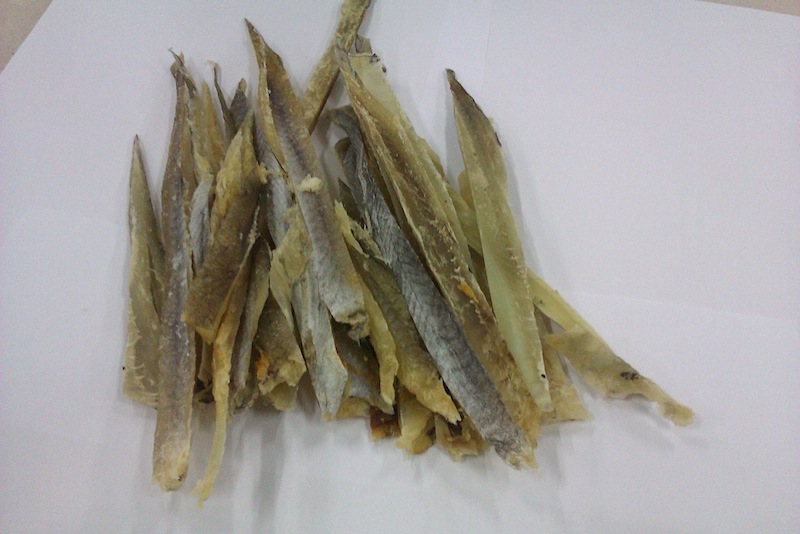
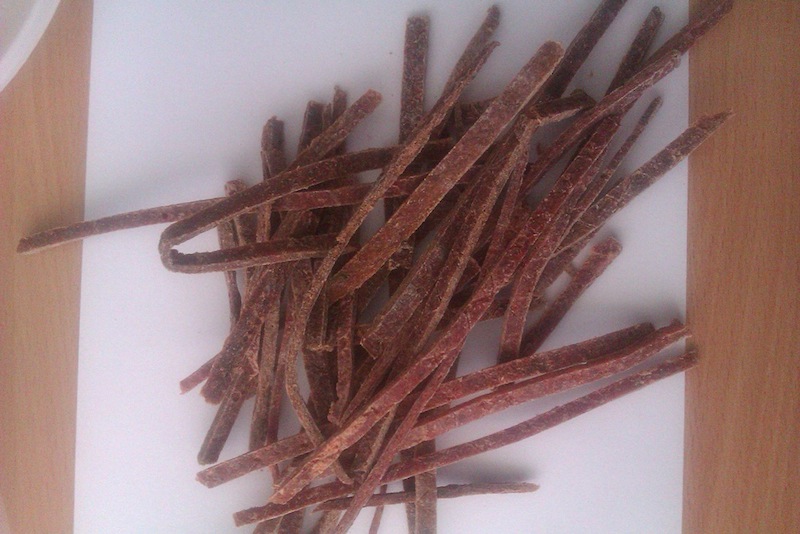
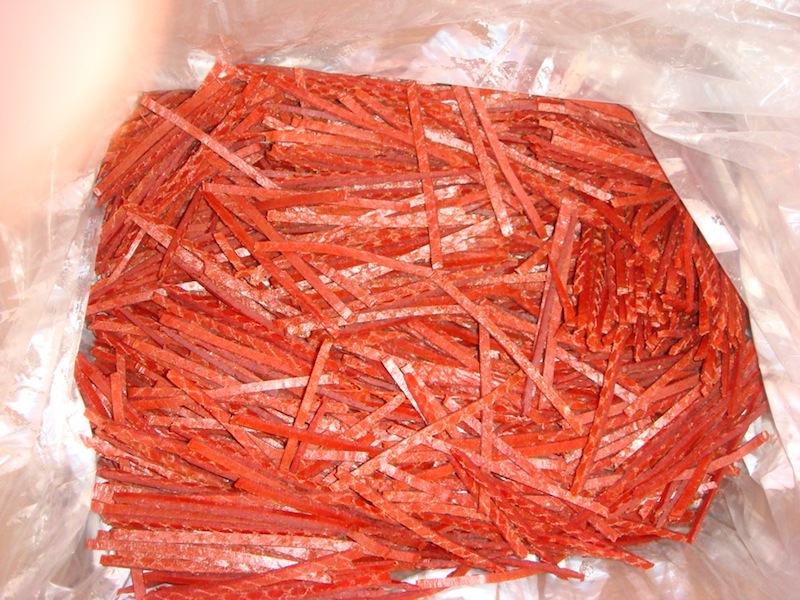
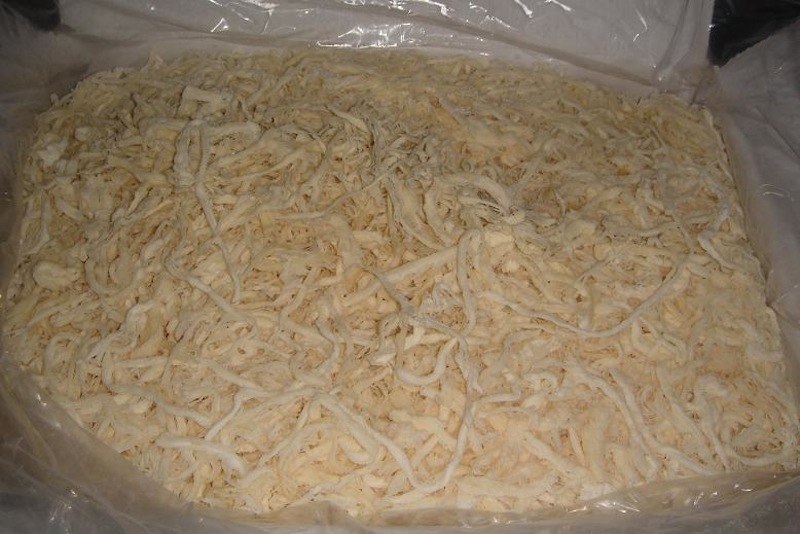
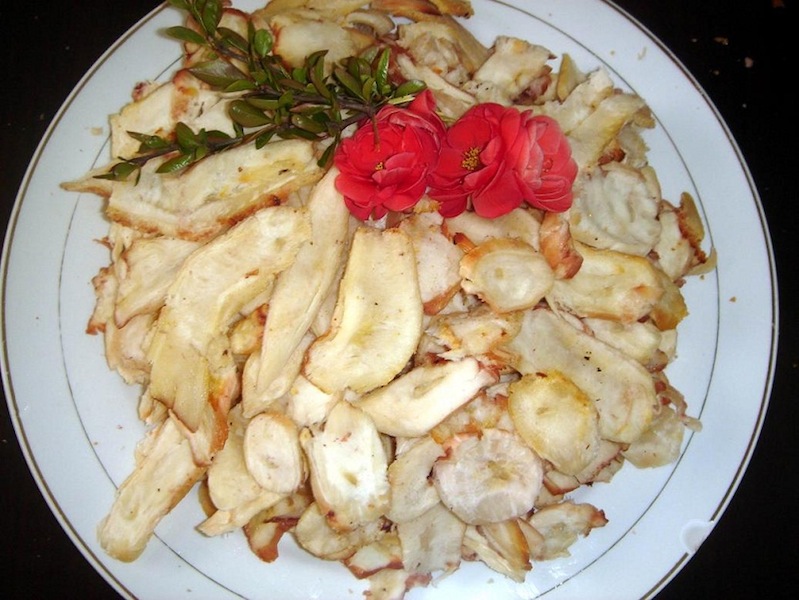
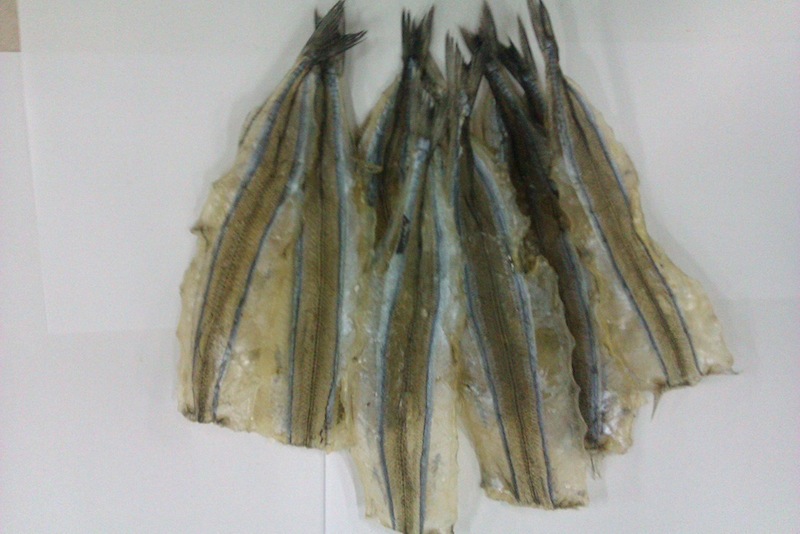
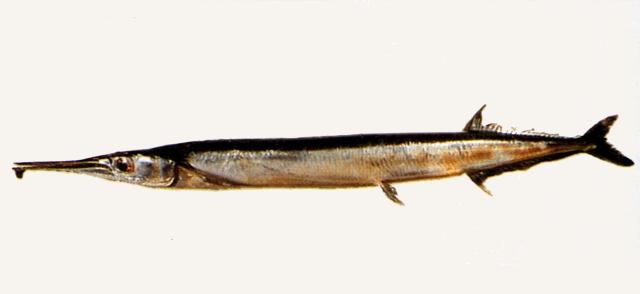
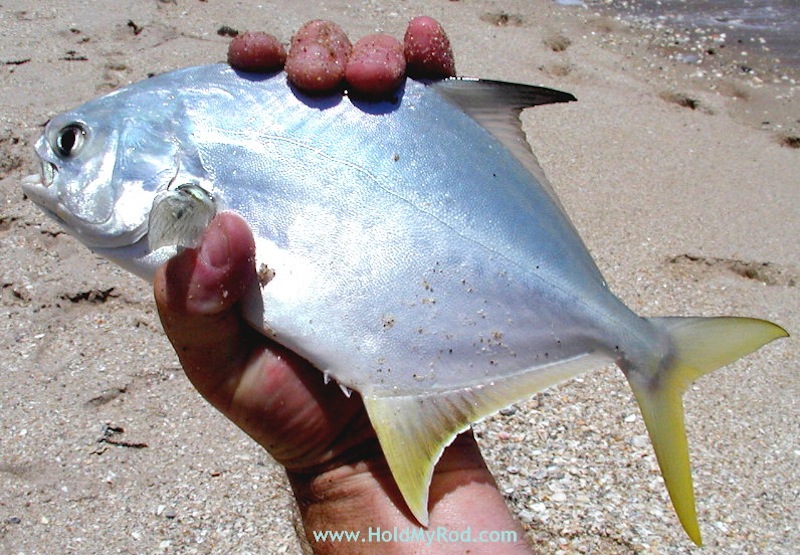
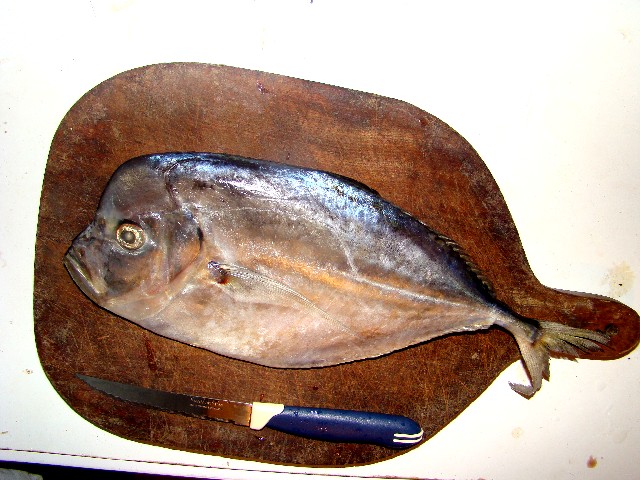
1. Тунец на шкуре. На самом деле - измельчённые копчёно-солёные (либо просто солёно-сушёные) полоски блувайтинга. Иногда филе блувайтинга продаётся в первозданном виде: 2. Солёно-сушёные (солёно-копчёные) полоски тунца (мясо тунца). На самом деле - продукт произведённый из сурими - измельчённого и окрашенного по специальной технологии мяса белой рыбы. Несколько лет назад для изготовления сурими массово использовался минтай, теперь же используется сайда - наиболее дешёвая белая рыба. Так же из сурими изготовляется масса иных "имитаций" морепродуктов. 3. Солёно-сушёные полоски лосося. На самом деле - аналогично тунцу: продукт сурими. 4. Солёно-сушёный (солёно-копчёный) измельчённый кальмар. Тут ситуация получше: это хотя бы действительно кальмар. Правда не тот кальмар, который вы покупаете в магазинах и готовите дома, а его дешёвый собрат: гигантский кальмар - Dosidicus gigas с совершенно омерзительным мясом, которое практически невозможно приготовить дома. В последние годы филе гигантского кальмара продают копчёным в супермаркетах, выглядит он вот так: (у нас это уже лет 10 продаеццо, по вкусу, похоже на копченую резину) Солёно-сушёное (солёно-копчёное) крыло кальмара - более дешёвый вариант той же самой дряни. 5. Солёно-сушёная рыба-игла. На самом деле - Tylosurus acus melanotus, действительно рыба, которую можно так назвать. В целом виде выглядит вот так: 6. Солёно-сушёный желтохвост. На самом деле по всей видимости YELLOW STRIPE TREVALLY. Аналогичную рыбу - Pompano - импортируют в замороженном виде для дальнейшей переработки уже в нашей стране. У нас с магазинах она продаётся либо под оригинальным названием "помпано", либо под жульническим "вомер". (в хохляндии) Настоящий же вомер "лобастый" и выглядит так: Технология обработки: 1. Receving raw materials / доставка сырья на завод. 2. Cleaning and trimming squids / очистка (мойка) и обрезание ненужных частей тушки кальмара. 3. Squids fillets in boiling water / варка филе кальмара в кипящей воде. 4. Seasoning with the ingredients / добавка в воду ингридиентов (соль, сахар, D-Sorbitol, Monosodium glutamate). 5. Dring / сушка. 6. Roast / прожарка. 7. Shredded / измельчение. 8. Final seasoning / повторная добавка ингридиентов (соль, сахар, D-Sorbitol, Monosodium glutamate). 9. Dry the final products / повторная просушка. 10. Filings coherer inspect / этого я перевести не смог. 11. Packing / упаковка. 12. Carried to cold storage / доставка на склад. Cостав конечного продукта выглядит так: кальмар 89%, сахар 7.2%, соль 1%, Monosodium glutamate 1%, D-Sorbitol 1.8%. автор - the-fencer



-
-











Аккаунт
Навигация
Поиск
Configure browser push notifications
Chrome (Android)
- Tap the lock icon next to the address bar.
- Tap Permissions → Notifications.
- Adjust your preference.
Chrome (Desktop)
- Click the padlock icon in the address bar.
- Select Site settings.
- Find Notifications and adjust your preference.
Safari (iOS 16.4+)
- Ensure the site is installed via Add to Home Screen.
- Open Settings App → Notifications.
- Find your app name and adjust your preference.
Safari (macOS)
- Go to Safari → Preferences.
- Click the Websites tab.
- Select Notifications in the sidebar.
- Find this website and adjust your preference.
Edge (Android)
- Tap the lock icon next to the address bar.
- Tap Permissions.
- Find Notifications and adjust your preference.
Edge (Desktop)
- Click the padlock icon in the address bar.
- Click Permissions for this site.
- Find Notifications and adjust your preference.
Firefox (Android)
- Go to Settings → Site permissions.
- Tap Notifications.
- Find this site in the list and adjust your preference.
Firefox (Desktop)
- Open Firefox Settings.
- Search for Notifications.
- Find this site in the list and adjust your preference.